You need to allow screen recording permission for Google Chrome.
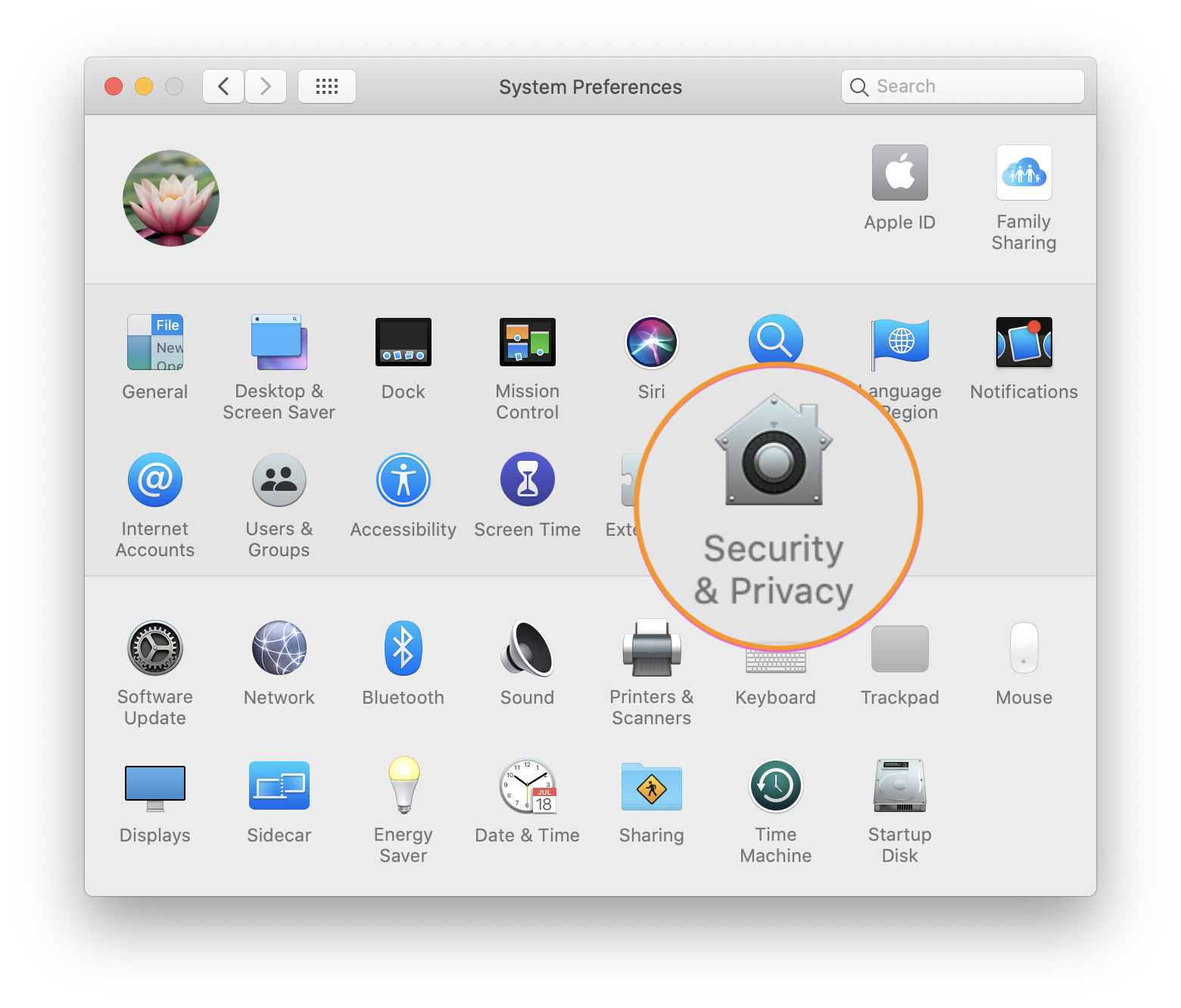
1. Click on the “Apple icon” from the left top of the screen
2. Open System Preferences, click the “Security and Privacy”
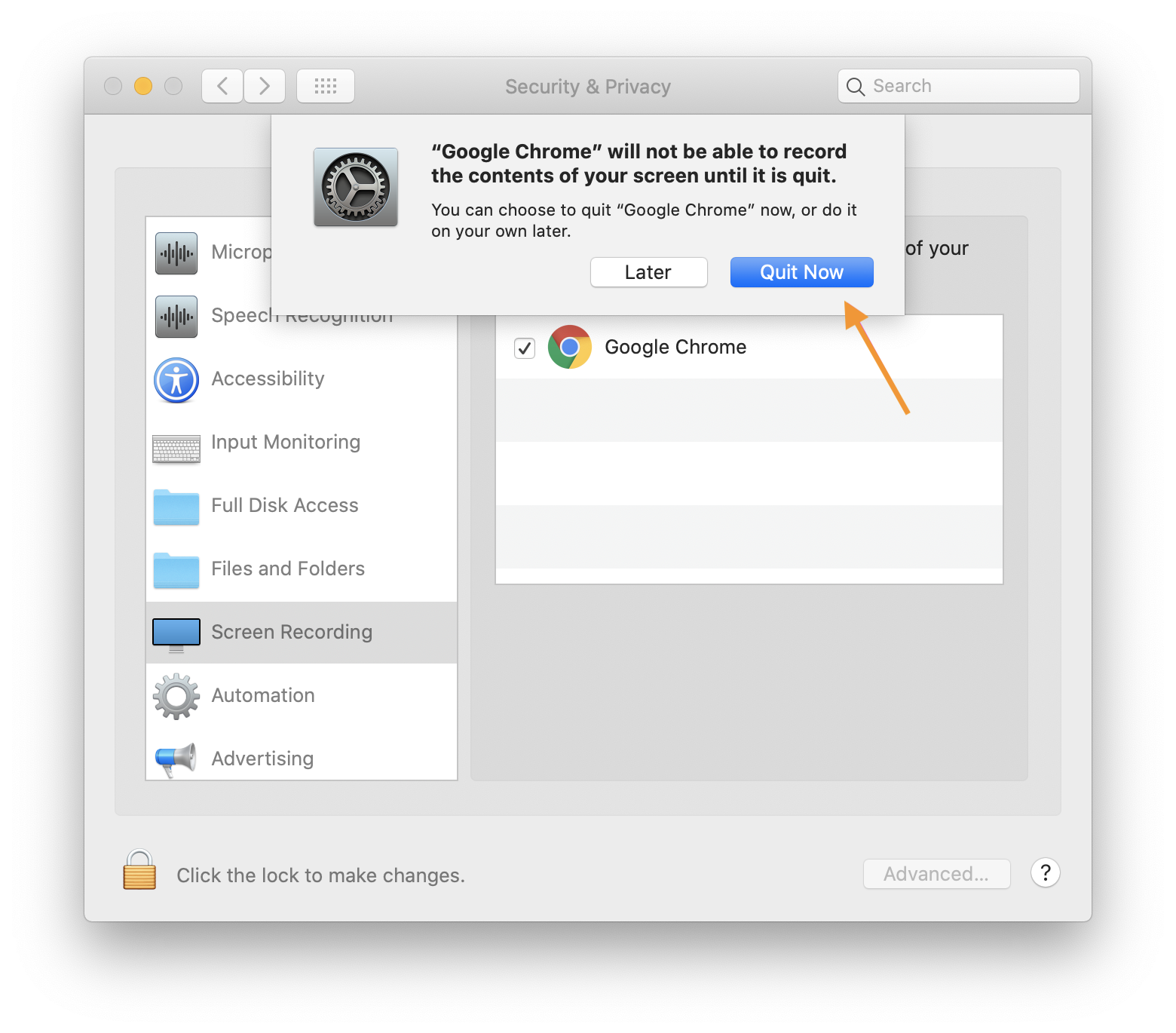
3. Find the “Screen Recording” section, click the box next to Google Chrome to allow Screen Sharing. You may need to click the unlock icon in the bottom-left.
4. Next, click “Quit Now”. Quit and restart Google Chrome, now you’re ready to take the test.
Yes, only once! You’ll be prompted to download the UserAdvocate Extension into the Google Chrome browser on your computer when you start the User Study.
Not at the moment. We are still building support for other browsers.
Yes, The purpose of a user study is to understand your usability feedback of the Website in the best way possible. Voice feedback along with Screen Sharing helps us to make meaningful conclusions about the Design shortcomings and things that you like/dislike about the test Website. So, We strongly recommend you allow this permission to increase your chances of getting rewarded. A submission without any voice feedback is most likely to get disapproved by our client, and you will be requested to re-take the test.
Try the following steps as recommended by Google:
Change a site’s camera & microphone permissions
If you’re using a Chrome device at work or school, your network administrator can set camera and microphone settings for you. In that case, you can’t change them here.
Learn about using a managed Chrome device..
No, we don’t support Private window / Incognito mode to take the user study.
No. For user’s security reasons, Google doesn’t allow any extension to work in Guest account.