How to take an iOS App User Study on Mobile/Tablet?
For the first-time user
Before you take the test, make sure you have…
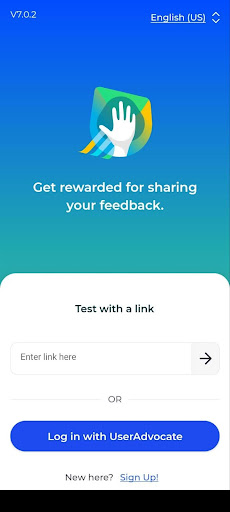
- Downloaded the UserAdvocate by UXArmy App on the Google Play Store or Apple Store
- Set a password for your account in the UserAdvocate App by
- Clicking “Login as UserAdvocate”
- Clicking “Forgot Password” to set a new password
Before starting your test, remember to
- Have yourself seated in a quiet place
- Wearing earphones for good voice recording quality
- Make sure the device is connected to strong WiFi or the internet for a fluent video uploading process.
You may click on the video guide to assist you in taking the app test.
Steps to Take An App Test on Android/Apple Devices
Login As UserAdvocate
- You’ll receive an email invite for the User study in your mailbox.
- Launch the UserAdvocate App
- Click the “Login as UserAdvocate” button
- Enter your User Advocate Credentials or “Sign Up” as a UserAdvocate to create an account.
Check Available Tests in Your Account
- Once logged in, you’ll see your main test page. Under ‘Available Tests’ you will see all the tests available.
- Tap on “View” to see the test you would like to participate in.
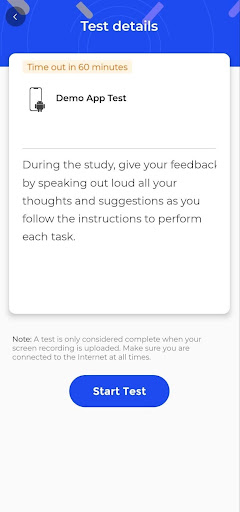
- Now, please read through the Test Details carefully
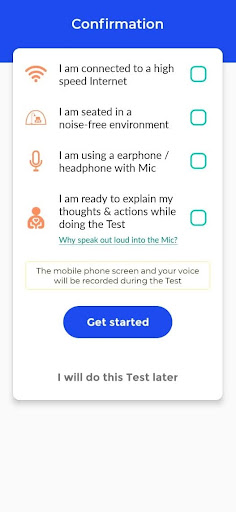
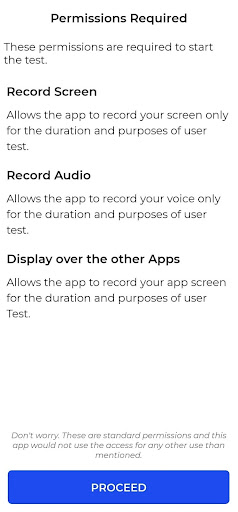
- Please check all boxes to consent to the necessary permissions required for starting the test.
- Tap on “Get started” to begin.
- ❗️ Please make sure to have your device connected to high-speed internet, sit in a noise-free environment, and put on your earpieces. This is to ensure that you have set up a good environment to take the test fluently.
- Click “Start Test” when you are ready to begin the test
Allow Permission Requests
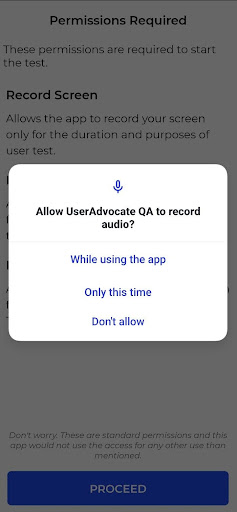
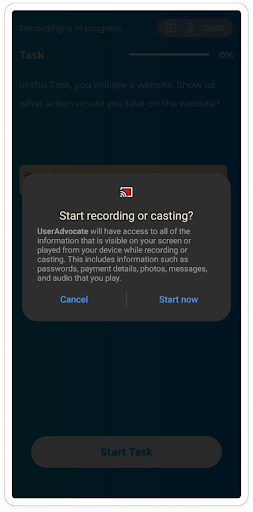
❗️ It is highly important to allow these permissions to have your submission uploaded successfully. Please DO NOT skip or deny any requests. You can change these permissions after the test.
- Tap on the “While using the app” or “Only this time” to allow the screen recording during the test
- Click on “Start now” to allow recording or casting
Starting The Task
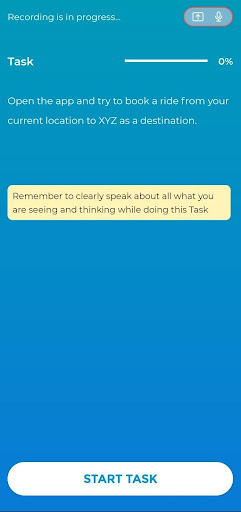
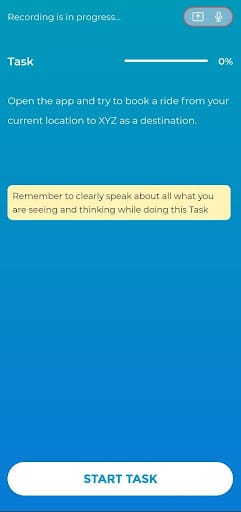
- Now, you’ll see the Task Instruction of the 1st Task. Read through the instructions carefully, and find out what you need to do to complete the task.
❗️ On the top of the screen, you’ll see the recording is on, and you’ll have 50 minutes to complete this whole study. Remember to speak out every thought or feedback you have in mind while doing each task.
- Tap on “START TASK 1” to start the task
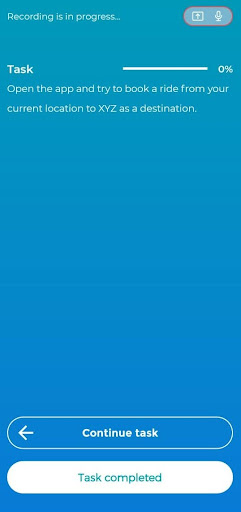
- Once you have finished the task, click on “Task Completed.” If you have not finished, click on “Continue Task.”
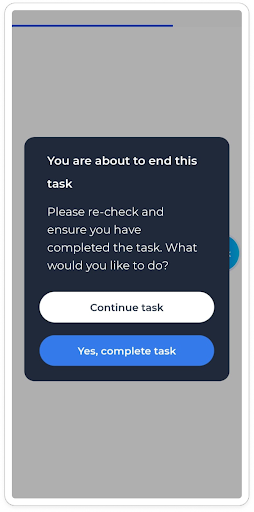
- Confirm your completion by clicking “Yes, complete task,” or select “Continue Task” to keep going.
❗ Please note once you’ve marked the task as completed, you won’t be able to come back to the previous tasks.
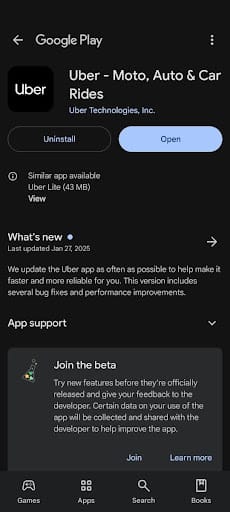
❗ Please note that the Uber App and Food Cart App shown in the screenshot below are for example purposes only. You would be asked to download a different app according to the study you are taking.
Types of Tasks
When starting the tasks, you might be shown one of these different tasks.
a. App navigation task: You might be asked to download and open an app or the TestFlight app (i.e., the app used for testing the iOS applications that are still in development) on your phone. Follow the task instruction given, and complete the task.
Please remember to return to the UserAdvocate App to continue your test journey. You can do this by reopening the app from where you left off or using the home button to switch back to the tested app.
❗Ensure all other tabs on your mobile device are closed to avoid confusion while toggling between the tested app and UserAdvocate App.
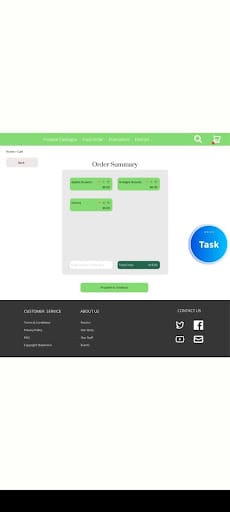
b. Prototype task: You’ll see a prototype, and follow the task instructions given to you to complete the task. If you see a screen similar to the left screen below, the prototype is loading, please wait for it.
If you are stuck at the prototype loading screen, please stop the test, and take a screenshot. Kindly email hi@uxarmy.com, we will contact you shortly.
❗️You will notice a task circle during certain tasks, this will contain task instructions and guide you to go to your next task.
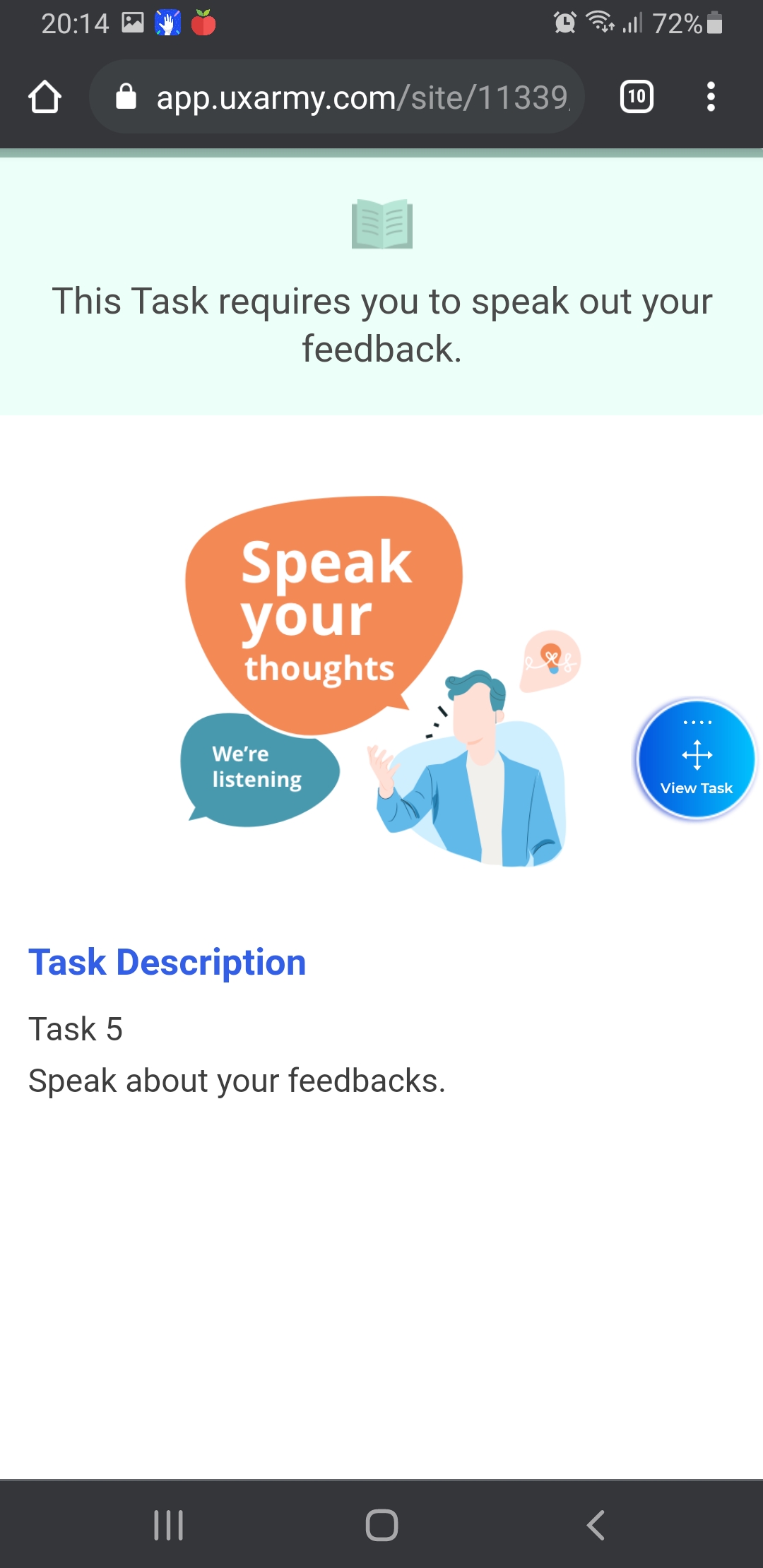
c. Speaking task: You’ll only need to speak out, talk about your thoughts, and give your verbal feedback, based on the task description given.
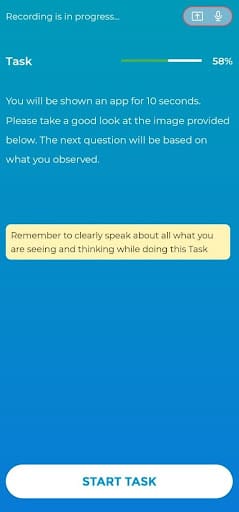
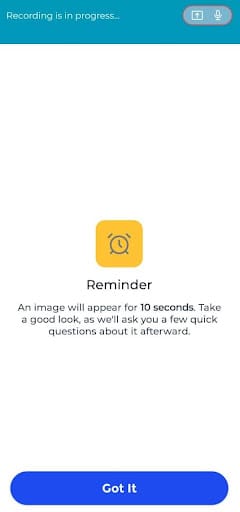
d. 5 Second tasks: You’ll be shown an image and asked to give some feedback, based on the image presented in the task.
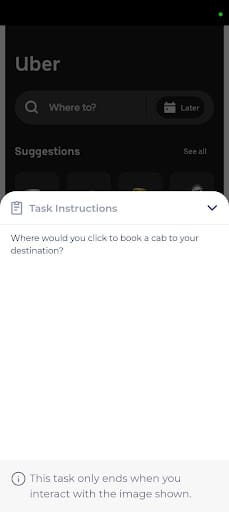
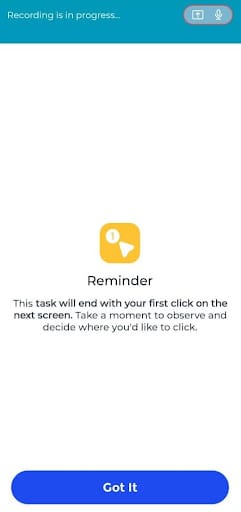
e. First-click tasks: You will be shown an image and will be asked to click on a part of the image based on your first impression.
After Completing The Task
- After you complete the task, you might see some types of survey questions asking about your actions in the task.
- Single Select
- Multiple Choices
- Open Question
- Likert Scale
- Ranking (rank the options by pressing and dragging the 3-line button on the right)
- You’ll be able to see the next Task after completing the questions.
Submit Test
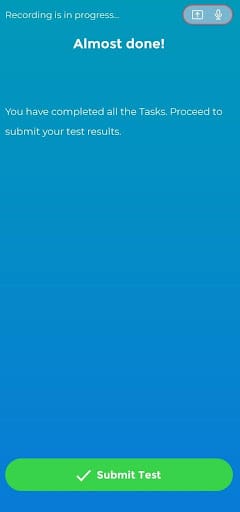
- Once you’ve completed all the tasks in the study, you will see the screen below. Tap on “Submit Test”.
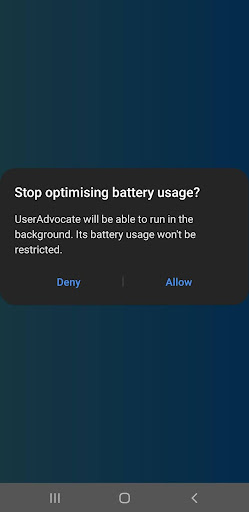
- Click “Allow” to disable battery saver mode and keep the UserAdvocate App running in the background. This ensures uninterrupted video uploading, even if you accidentally exit the app. You can turn off this setting after the video uploading.
- Then, the App will automatically start uploading your screen recording. Wait till the recording to be fully uploaded.
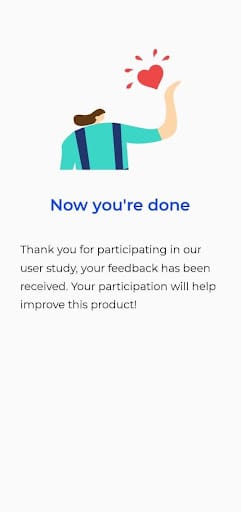
- Once the video uploading has been completed, you can close the test or tap on “Become UserAdvocates” to receive more other Paid User Study Invites in the future.
👉 Who are the UXArmy UserAdvocates?